
OBS Streaming Guide
現在の記事は、選択した言語をサポートしていません。自動的に英語が推奨されています。
OBS Streaming Guide
2025-05-26 14:38
56465シェア
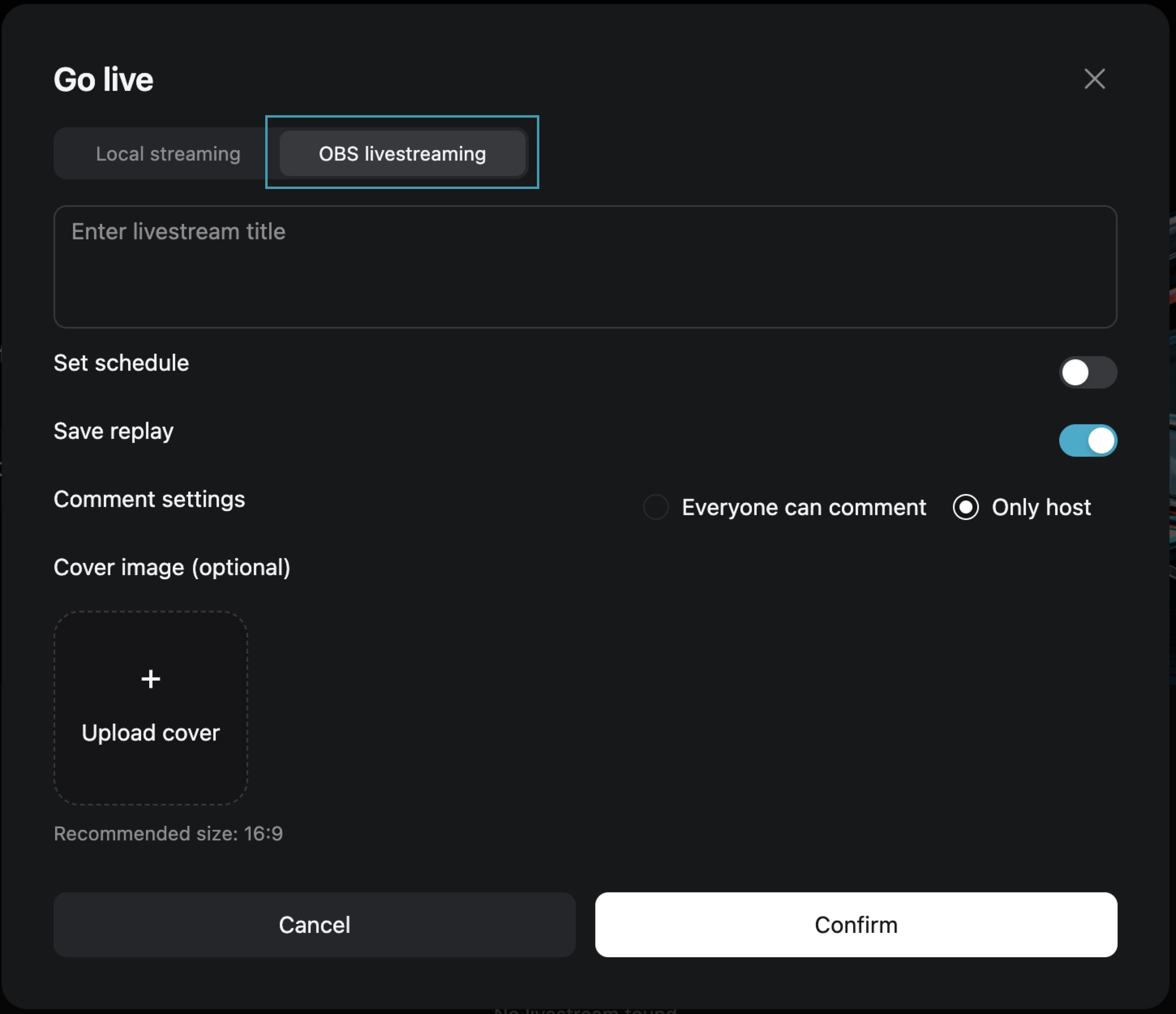
Step One: Choose [OBS Streaming Live]
After filling in the live broadcast information, click [Confirm] to enter the live preview page.
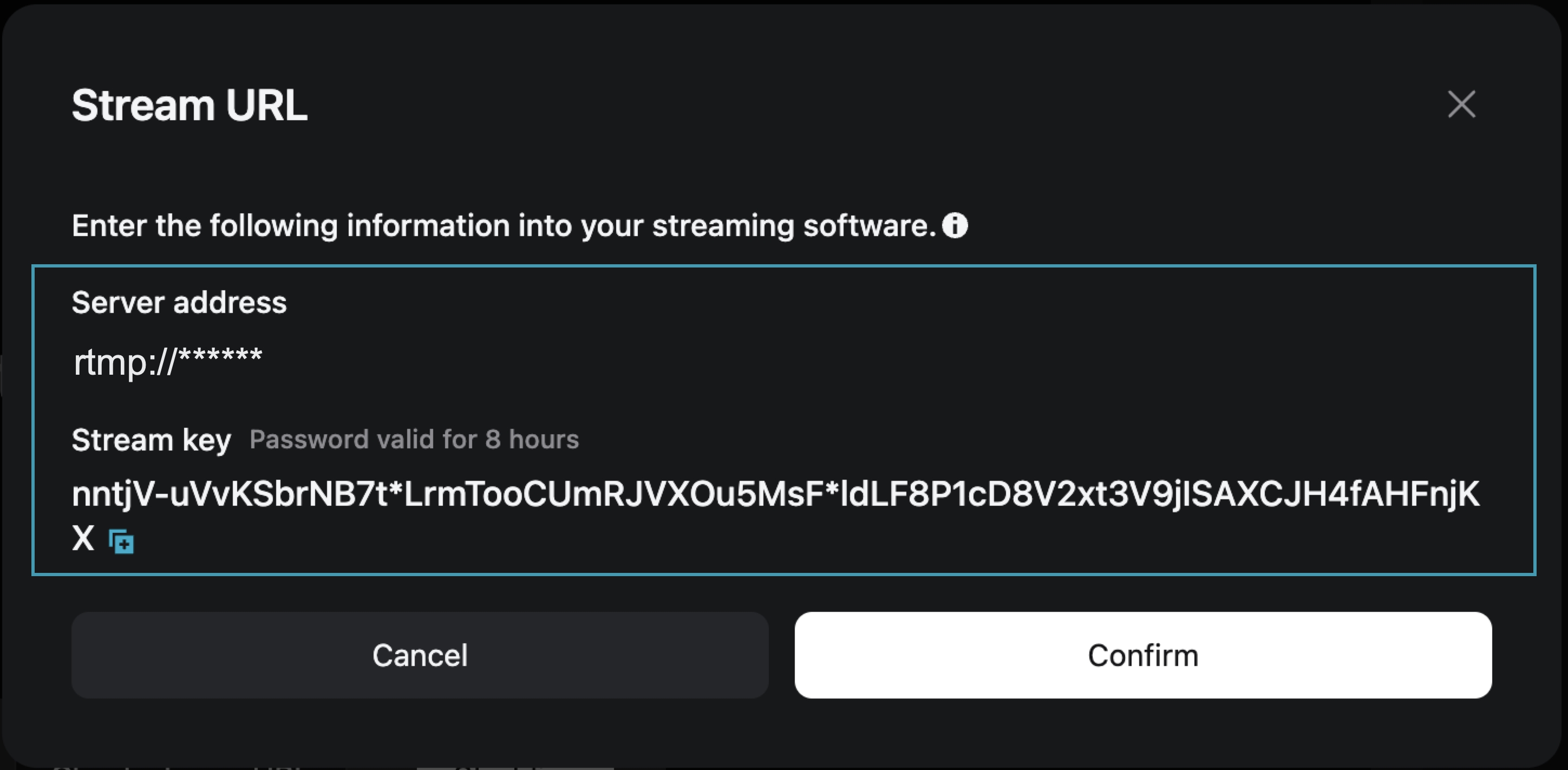
Step Two: On the live preview page, obtain the [Stream Address] and [Stream Key]
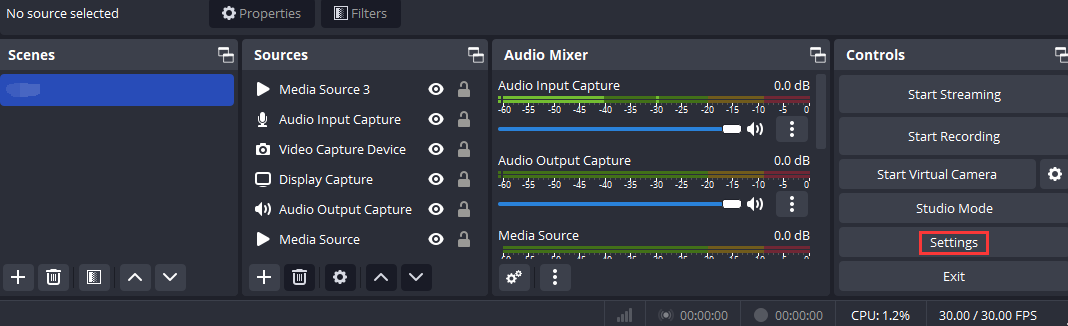
Step Three: Open OBS and access the settings page
Open OBS, and you can access the settings interface by clicking on the Settings button in the bottom toolbar control.
Step Four: Configure OBS Stream Settings
1. Click [Stream] to enter the stream settings tab, and select "Custom Streaming Server" as the service type.
2. Enter the obtained "Server Address" and "Stream Key" into the Server and Bearer Token fields.
Server: Corresponds to "Server Address"
Bearer Token: Corresponds to "Stream Key"
3. Save the settings.

Step Five: Configure Output Parameters
Output Mode: Select “Advanced”
Rescale Output: Select 1280*720
Profile: Select baseline

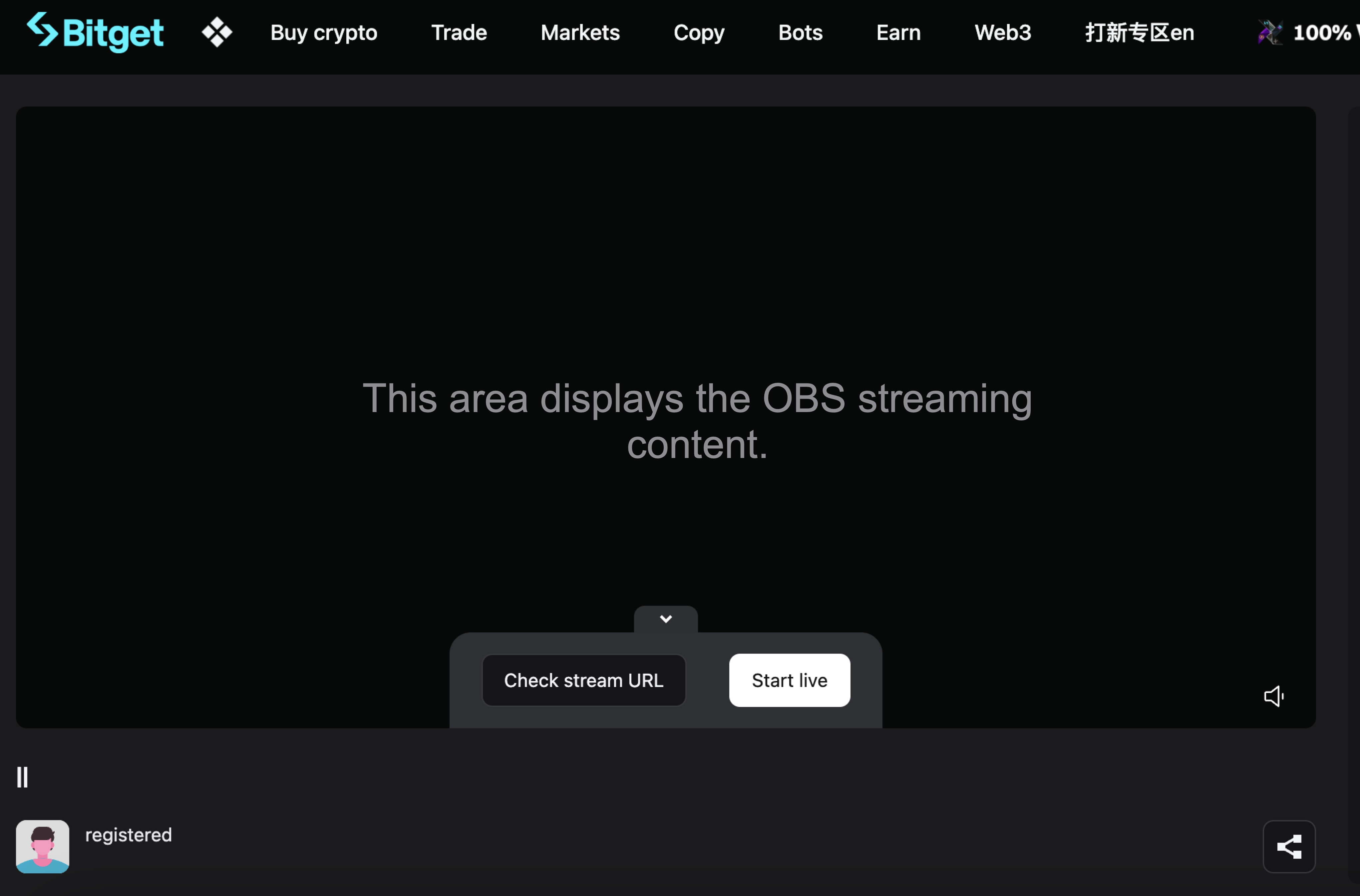
Step Six: Return to the Bitget Live Preview Page
At this point, the live preview page will display your OBS broadcast content. Click [Start Live] to begin your live broadcast on Bitget.
Join Bitget, the World's Leading Crypto Exchange and Web3 Company
*本公告は時間的制約のある内容です。公開日をご確認ください。状況の変化や内容の陳腐化により生じたいかなる直接的または間接的な損失についても、当プラットフォームは一切の責任を負いません。
関連記事
⚙️ 未反映入金の返金サービスメンテナンス📢 KYC再認証に関するお知らせFAQ - 日本居住者の皆様への重要なお知らせBitgetブローカープログラム - よくあるご質問Bitgetで相続申請を提出する方法GetAgentでSatoshiに会える!Satoshiにどんどん質問して、10,000ドル相当のBTCエアドロップを獲得しましょう!期間限定のGetAgent Plusへのアップグレード - すべてのユーザーが利用可能🎉 Bitget 7周年記念 · GetAgent 限定特典 🎂Bitget TelegramガーディアンBotがリリースされました!Bitget Wallet Token (BWB) と Bitget Token (BGB) の統合に関するFAQ
役に立ちましたか?