
Questo articolo non è presente nella lingua che hai selezionato e ti è stata automaticamente raccomandata la versione Inglese.
How to set CFD copy trading parameters
[Estimated reading time: 5 mins]
This article explains how to set CFD copy trading parameters on Bitget. You can learn how Fixed ratio and Fixed lots work, how copied lot sizes are calculated, and how to configure risk control parameters such as take profit, stop loss, and maximum lots per order.
CFD copy trading parameters decide how your account follows an elite trader’s positions. You can choose a copy mode based on your account equity, risk preference, and preferred lot size, then adjust the available parameters before starting copy trading.
Overview of CFD copy trading parameters
When setting CFD copy trading parameters, you can choose between two copy modes: Fixed ratio and Fixed lots.
| Copy mode | Description | Suitable for |
| Fixed ratio | Calculates the copied lot size based on the equity ratio between you and the elite trader. You can also set a custom lot multiplier. | Users who want copied lot sizes to scale based on the elite trader’s opening lot size or account equity ratio. |
| Fixed lots | Each copied order uses the fixed lot size you set, regardless of the elite trader’s lot size or equity ratio. | Users who want each copied order to use a fixed position size. |
How to set CFD copy trading parameters?
Step 1: Select a copy mode
1. Go to the CFD copy trading parameter setup page.
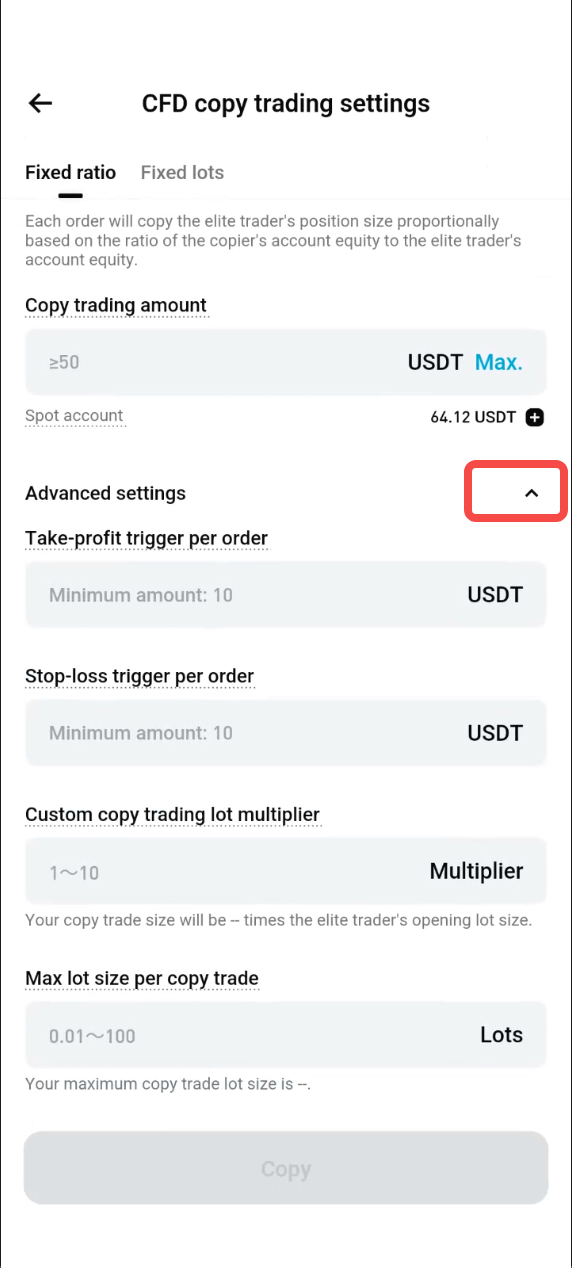
2. Select either Fixed ratio or Fixed lots at the top of the page.
3. Choose the mode based on how you want the copied lot size to be calculated.
Step 2: Configure the parameters
1. You can open Advanced settings to configure.
2. Review the supported value range and rules before confirming your settings.
3. Set Take profit or Stop loss if needed.
Step 3: Confirm and save
1. Check whether the selected mode, lot size settings, and risk control parameters match your trading preference.
2. Save your settings.
3. The parameters will apply to copied positions based on the selected mode.
Fixed ratio
In Fixed ratio mode, the system calculates your copied lot size based on the equity ratio between you and the elite trader.
The default calculation logic is:
Copied lot size = Elite trader’s opening lot size × Your equity ÷ Elite trader’s equity
For example, if the elite trader opens 0.5 lots, your equity is 2,000 USDT, and the elite trader’s equity is 1,000 USDT, your copied lot size will be:
0.5 × 2,000 ÷ 1,000 = 1 lot
This means the copied lot size of each new position may change as account equity changes. If your equity is higher than the elite trader’s equity, your copied lot size may be larger. If your equity is lower, your copied lot size may be smaller.
The final copied lot size may also be rounded down based on the minimum lot size step of the trading instrument. As a result, your copied lot size may not always be exactly the same as the calculated value or the elite trader’s opening lot size.
Custom Lot multiplier
Custom Lot multiplier is an advanced parameter under Fixed ratio mode. It lets you copy the elite trader’s opening lot size based on a custom multiple instead of the default equity ratio.
The calculation logic is:
Copied lot size = Lot multiplier × Elite trader’s opening lot size
For example, if the elite trader opens 0.01 lots of XAUUSD and you set the Lot multiplier to 2, your copied order will open 0.02 lots.
Setting rules
-
Supported range: 1 to 10
-
Only positive integers are supported.
-
The field is blank by default.
-
If left blank, the system uses the default equity ratio calculation.
-
After a value is entered, your copied order lot size will be fixed as N times the elite trader’s opening lot size.
This parameter may be useful when:
-
You follow an expert advisor, or EA, hedging strategy and need long and short positions to stay aligned.
-
Your account equity is slightly lower or higher than the elite trader’s equity, but you want copied lot sizes to stay closer to the elite trader’s order size.
-
You want to avoid copied lot size differences caused by equity ratio rounding.
Max lots per order
Max lots per order is an advanced parameter under Fixed ratio mode. It limits the maximum opening lot size for each copied order.
This parameter helps reduce single-order risk when your account equity is much higher than the elite trader’s equity.
For example, if the elite trader opens 0.5 lots and your equity is 10 times higher than the elite trader’s equity, the system may calculate your copied order as 5 lots. If you set Max lots per order to 2 lots, the actual copied order will open 2 lots.
Setting rules
-
Supported range: 0.01 to 100
-
Supports up to two decimal places.
-
The field is blank by default.
-
If left blank, this limit is not enabled.
-
After a value is entered, each copied order will not exceed the set maximum lot size.
Important notes
-
If the final lot size is lower than the minimum order size of the trading instrument, the system will not open the copied position.
Fixed lots
In Fixed lots mode, each copied order uses the fixed lot size you set. The copied lot size does not change based on the elite trader’s lot size or the equity ratio between you and the elite trader.
For example, if you set 0.1 lots, every copied order will open with 0.1 lots, regardless of whether the elite trader opens 0.01 lots, 0.5 lots, or another lot size.
Setting rules
-
The default value is 0.01 lots.
-
You can adjust the value using the stepper.
-
Quick presets are available:
-
0.01
-
0.1
-
1
-
10
-
Important notes
-
If the fixed lot size is lower than the minimum opening size, the system will not execute the copy trade opening.
-
The actual executed lot size will be displayed in the order details.
-
If your maximum openable lot size is lower than the fixed lot size you set, the copy trade opening will fail.
-
In Fixed Lot Size mode, the system will not use the “maximum openable lot size” as a fallback lot size to open a position.
-
In Fixed Lot Size mode, “Lot Size Multiplier” and “Maximum Copy Trade Lot Size per Order” will not be displayed in Advanced Settings.
Take profit and stop loss
Take profit and Stop loss are risk control parameters. They can be configured in Advanced settings under both Fixed ratio and Fixed lots modes.
After you enter a take profit or stop loss amount, the system calculates the corresponding price based on:
-
Your set amount.
-
The opening price.
-
The copied lot size.
The calculated take profit and stop loss prices are added directly to each copied position when it is opened.
You can view the take profit and stop loss prices in the position details. You can also manually edit the take profit or stop loss price for a single position. Manual changes only apply to that position.
If you change the global take profit or stop loss amount later, the change only applies to new positions opened afterward. Existing positions will keep their original take profit and stop loss prices.
Take profit
Take profit sets the profit amount for each copied position.
Setting rules
-
Minimum amount: 10 USDT
-
Only positive integers are supported.
-
Unit: USDT
When the copied position’s profit reaches the set amount, the system triggers take profit and closes the position at market price.
Due to market movement, the actual execution price may be different from the calculated price.
Stop loss
Stop loss sets the loss amount for each copied position.
Setting rules
-
Minimum amount: 10 USDT
-
Only positive integers are supported.
-
Unit: USDT
When the copied position’s loss reaches the set amount, the system triggers stop loss and closes the position at market price.
Due to market movement, the actual execution price may be different from the calculated price.
Important notes about take profit and stop loss
Take profit or stop loss setup may fail in the following cases:
-
The calculated take profit or stop loss price does not meet the MT5 minimum pending order distance requirement.
-
Your current account equity is lower than the take profit or stop loss amount.
After a copied position is opened:
-
Changing the global take profit or stop loss amount only applies to new positions.
-
Existing positions keep their original take profit and stop loss prices.
-
If a position is partially closed, the remaining position keeps the same take profit and stop loss price.
-
Once triggered, the system closes all remaining lots in that position.
How to edit CFD copy trading parameters?
After copy trading starts, you can still edit some parameters. However, you cannot switch the copy mode from the edit page.
To edit your parameters:
1. Go to the Copy details page.
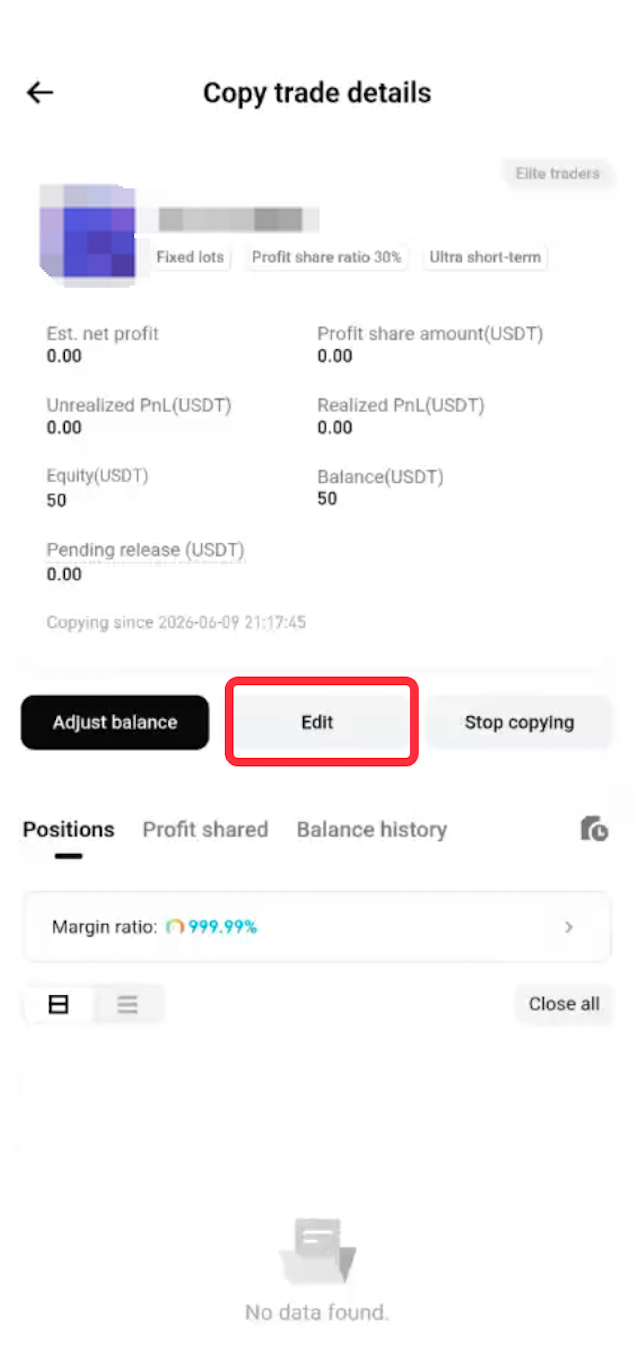
2. Tap Edit. The Edit button is located between Adjust funds and Cancel copy trading.
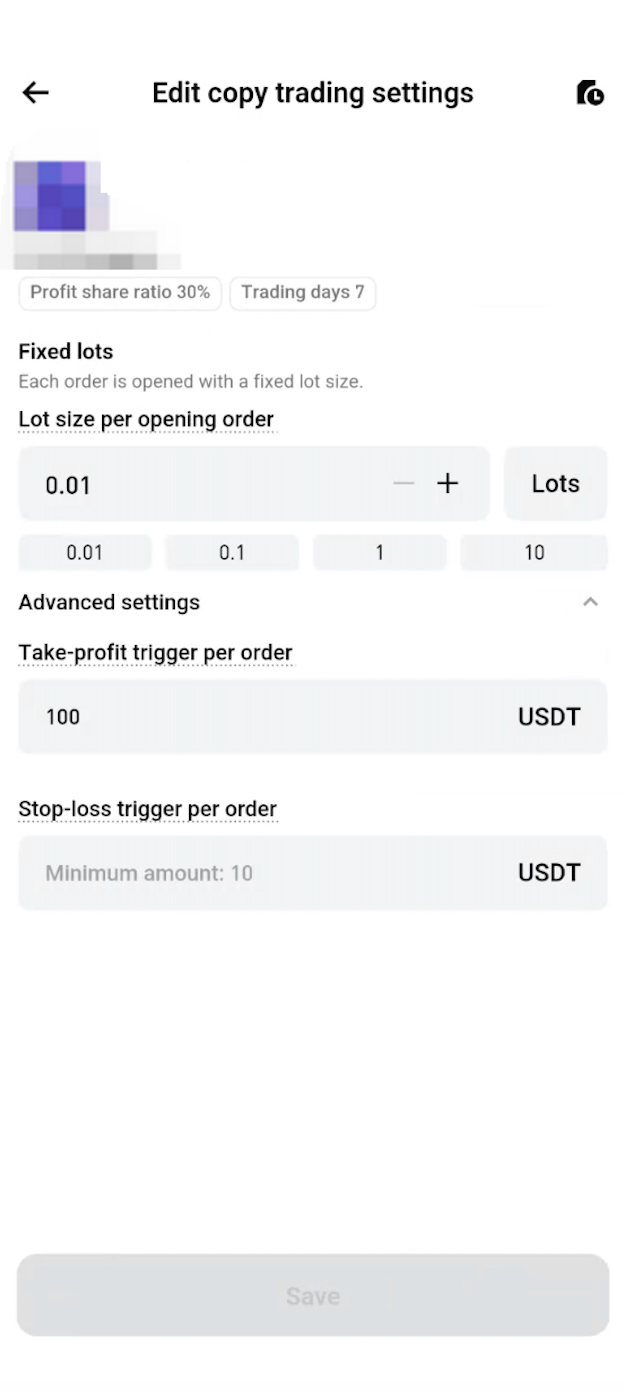
3. Review the current active parameters loaded on the edit page.
4. Modify the supported parameters based on your current copy mode.
5. Tap Save after making changes.
The editable parameters depend on your current copy mode.
| Parameter | Fixed ratio | Fixed lots |
| Switch copy mode | No | No |
| Lots per order | No | Yes |
| Lot multiplier | Yes | No |
| Max lots per order | Yes | No |
| Take profit | Yes | Yes |
| Stop loss | Yes | Yes |
The Save button becomes available when any parameter is different from the current value.
After saving:
-
New parameters only apply to new copied orders.
-
Existing positions are not affected.
-
Updated take profit and stop loss amounts only apply to new positions.
-
Existing positions keep their original take profit and stop loss prices.
How to view the setting history?
Each time you save your CFD copy trading parameters, the system records a snapshot. This helps you review past changes and check which parameters were saved at a specific time.
To view setting history:
1. Go to the copy trading parameter edit page.
2. Tap the clock icon in the top-right corner.
3. Open the Setting history page.
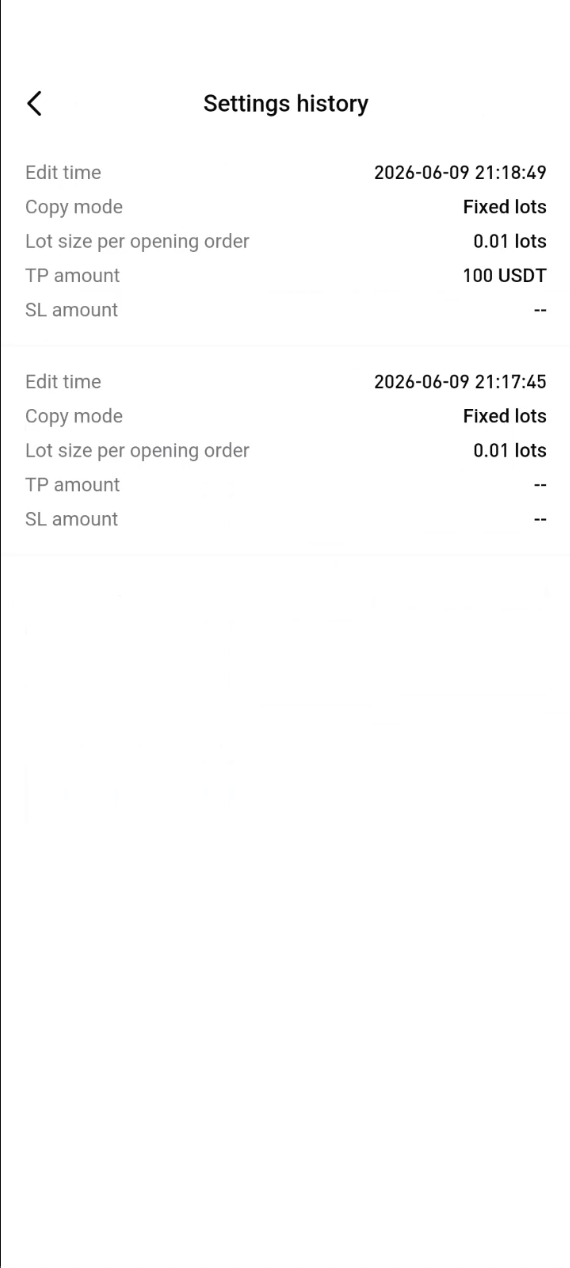
FAQs
1. Why is my copied lot size different from the elite trader’s lot size?
In Fixed ratio mode, the copied lot size is calculated based on the elite trader’s opening lot size and the equity ratio between you and the elite trader. The system also rounds down the calculated result based on the minimum lot size step of the trading instrument, so the final copied lot size may be different.
2. How can I copy the elite trader’s lot size exactly?
You can use Lot multiplier in Fixed ratio mode and set the multiplier to 1. This allows your copied order size to follow the elite trader’s opening lot size at a 1:1 ratio.
3. What is the difference between Lot multiplier set to 1 and the default fixed ratio logic?
The default fixed ratio logic changes with account equity, so the copied lot size may vary. Setting Lot multiplier to 1 follows the elite trader’s opening lot size directly and is not affected by equity changes.
4. When should I use Lot multiplier?
Lot multiplier may be useful when you follow an EA hedging strategy and need copied long and short positions to stay aligned. It can also help avoid copied lot size differences caused by equity ratio rounding.
5. What happens if my take profit or stop loss is triggered?
The system will close the copied position at market price. If the position was partially closed before the trigger, the remaining position will be fully closed after the take profit or stop loss is triggered.
6. Will existing positions change after I edit my CFD copy trading parameters?
Existing positions will not change. Updated parameters only apply to new copied orders opened after you save the changes.
7. Why did my take profit or stop loss setup fail?
Setup may fail if the calculated price does not meet the MT5 minimum pending order distance requirement. It may also fail if your current account equity is lower than the take profit or stop loss amount.
8. Can I change my copy mode after copy trading starts?
You cannot switch between Fixed ratio and Fixed lots from the edit page after copy trading starts. You can only edit the supported parameters under your current copy mode.
Join Bitget, the world's largest Universal Exchange (UEX)
Condividi


